← Help
How to set up the member cabinet
The member cabinet is a private page for active subscribers. Here you show content available only after payment: lessons, files, videos, subscription status. It's built from blocks, like the landing page.
Step 1. Open "Member cabinet"
In the workspace menu, under "Content & brand", choose the "Member cabinet" tile.
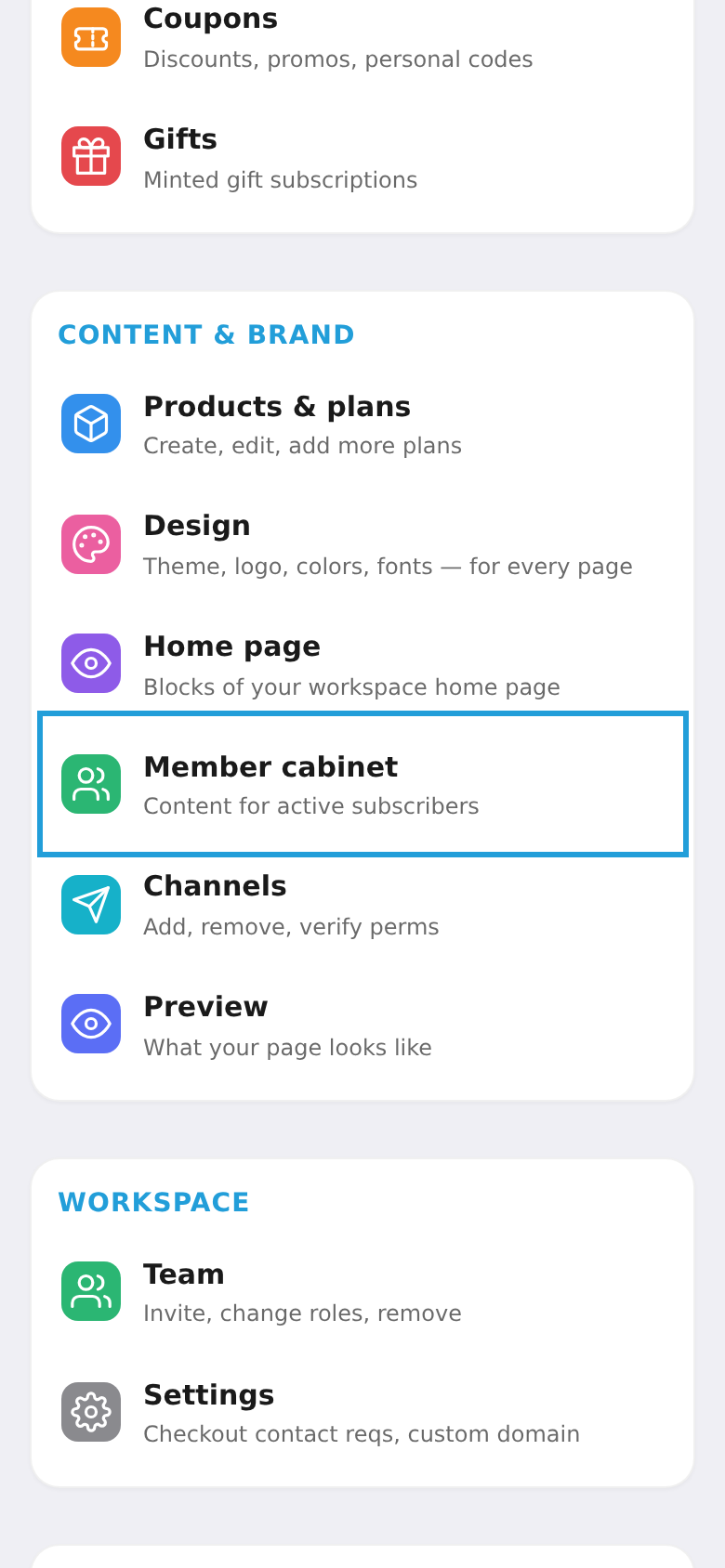
Step 2. Add content for subscribers
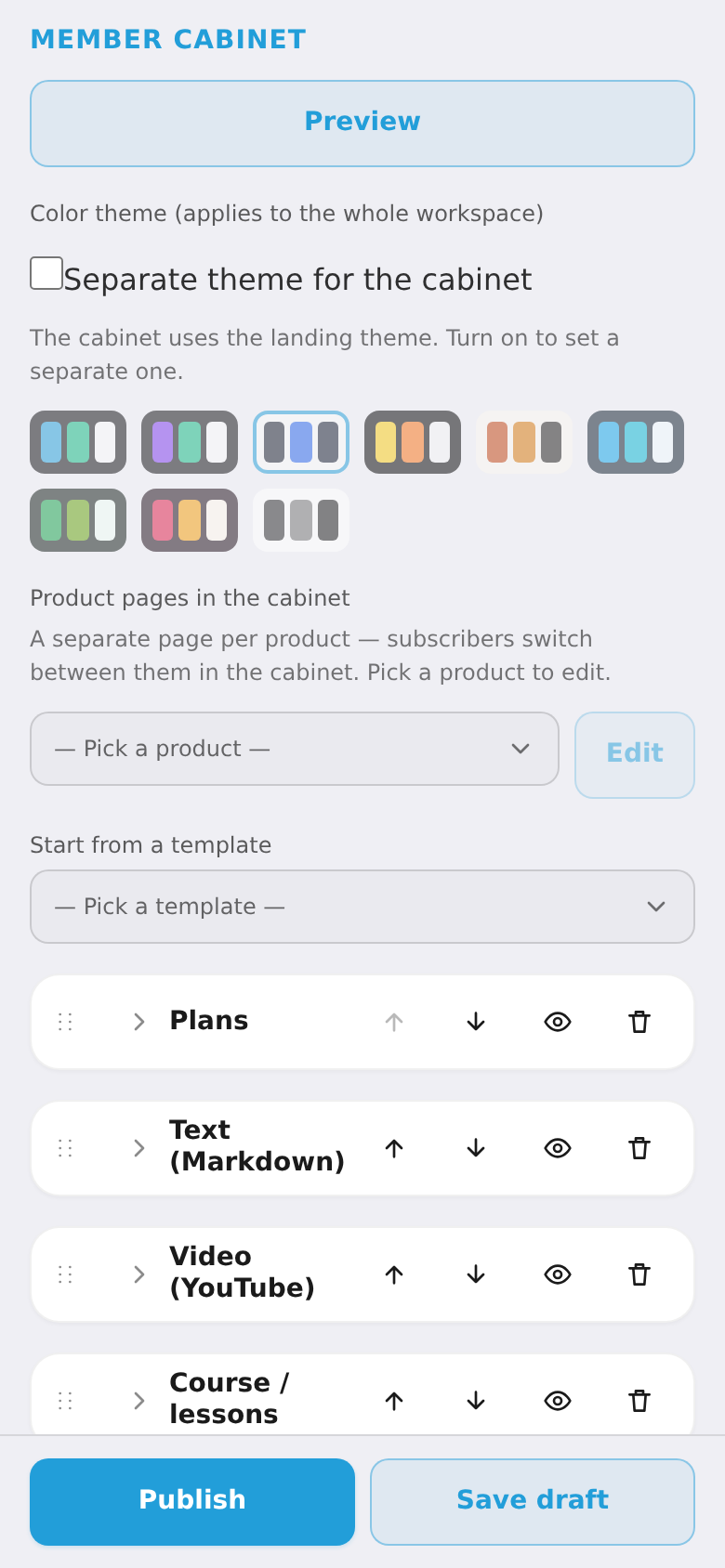
The "Member cabinet" editor opens. Add content blocks: lessons, files, video, text, subscription status, profile. The cabinet can be configured per product. Optionally turn on a custom color palette. Blocks can be shown only to specific plans. Tap "Publish" when ready.