How to connect payments
To accept payments from customers, connect a payment provider. WayForPay is currently available. Note: you first need a registered business (in Ukraine — a ФОП) and your own merchant shop with the provider — a separate, multi-day process. Steps below.
Step 1. Prerequisites (business + shop)
Before you connect, make sure you have:
- a registered business (ФОП) — the provider won't approve the application without one;
- a separate WayForPay shop — create a new shop in their dashboard specifically for the platform (WayForPay support recommends this too).
⚠️ In the shop settings, give the address of your page on the platform (your products storefront), not some separate website. The platform creates this page for you — see "Home page": https://sub.rybkaos.com/your-workspace (or your own domain).
💡 If you already have a ready WayForPay button — it won't work here. The platform must initiate payments itself, control the trial period and recurring charges/reminders, so it needs your merchant keys, not a static button.
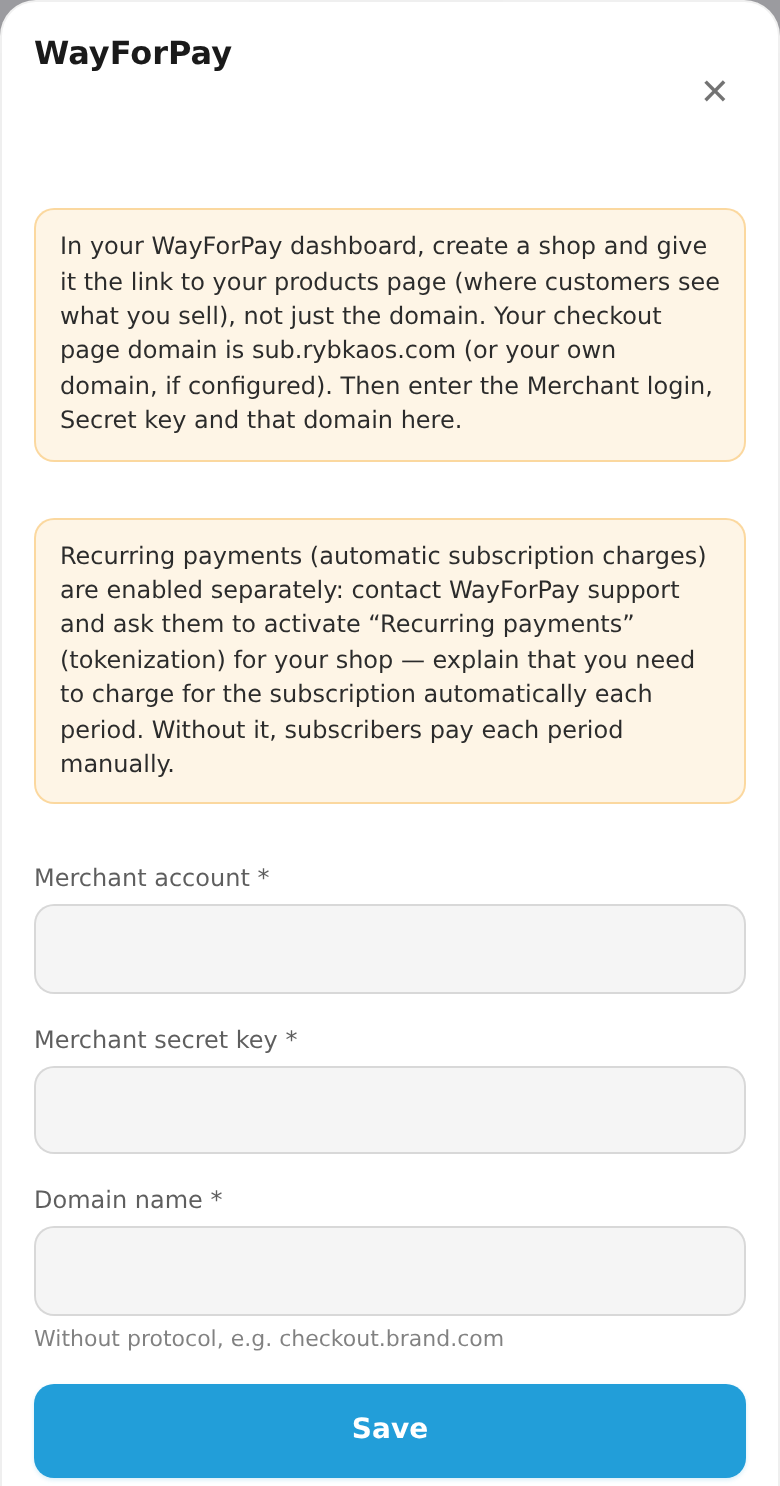
Once the shop is approved, copy the Merchant account, Secret key and the domain (sub.rybkaos.com or your own) — you'll need them in step 4.
Step 2. Open "Payment providers"
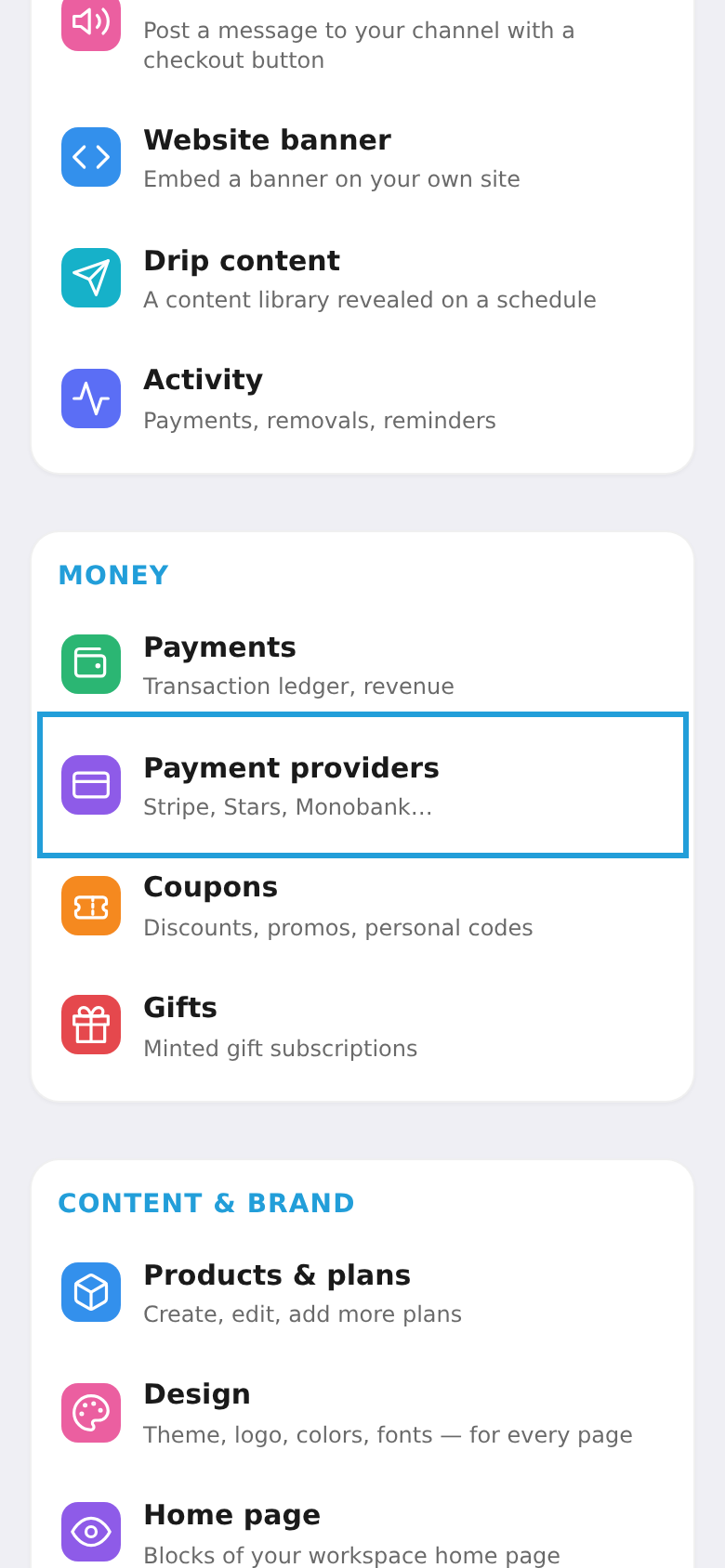
In the workspace menu, under "Money", choose "Payment providers". The top of the page briefly recaps the prerequisites from step 1.
Step 3. Choose WayForPay
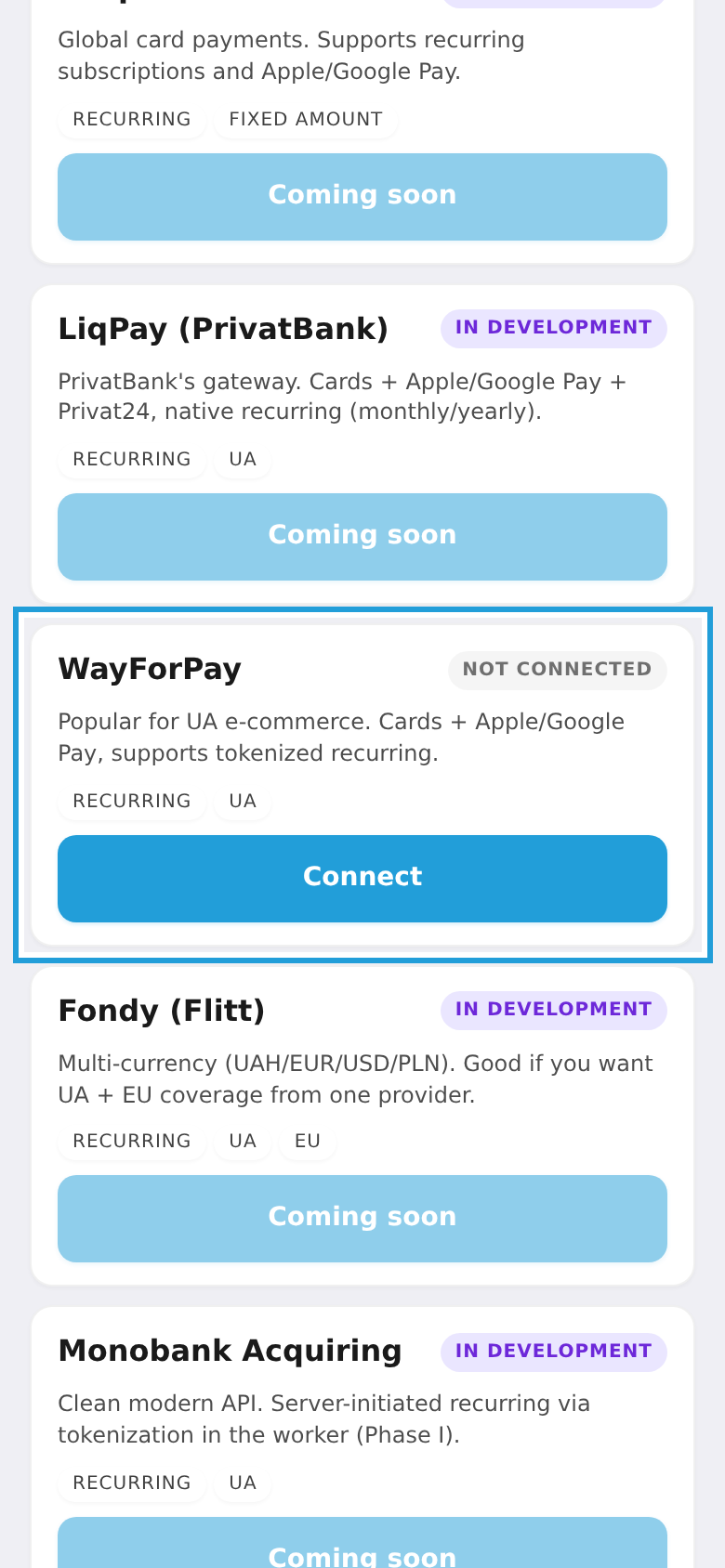
Tap the WayForPay card (it's the only available provider for now; the others are in development). The connect dialog reminds you which domain to use.
Step 4. Enter the details and save
Enter the Merchant account, Secret key and Domain and tap "Save". In the Domain field put sub.rybkaos.com (or your own domain, if configured) — the same one as in your WayForPay shop.
💡 Recurring payments (automatic subscription charges) are separate. Contact WayForPay support and ask them to activate recurring payments for your shop; explain that you need to charge for the subscription automatically each period. Without it, subscribers pay each period manually.