Subscriber card: every action
Tapping a subscriber in the list opens their card — your hub for every manual action: extend, cancel, remove, resend the link, refresh data from Telegram, edit contacts, or relink the subscription to a new account. Here's what each action does.
Step 1. Open the subscriber card
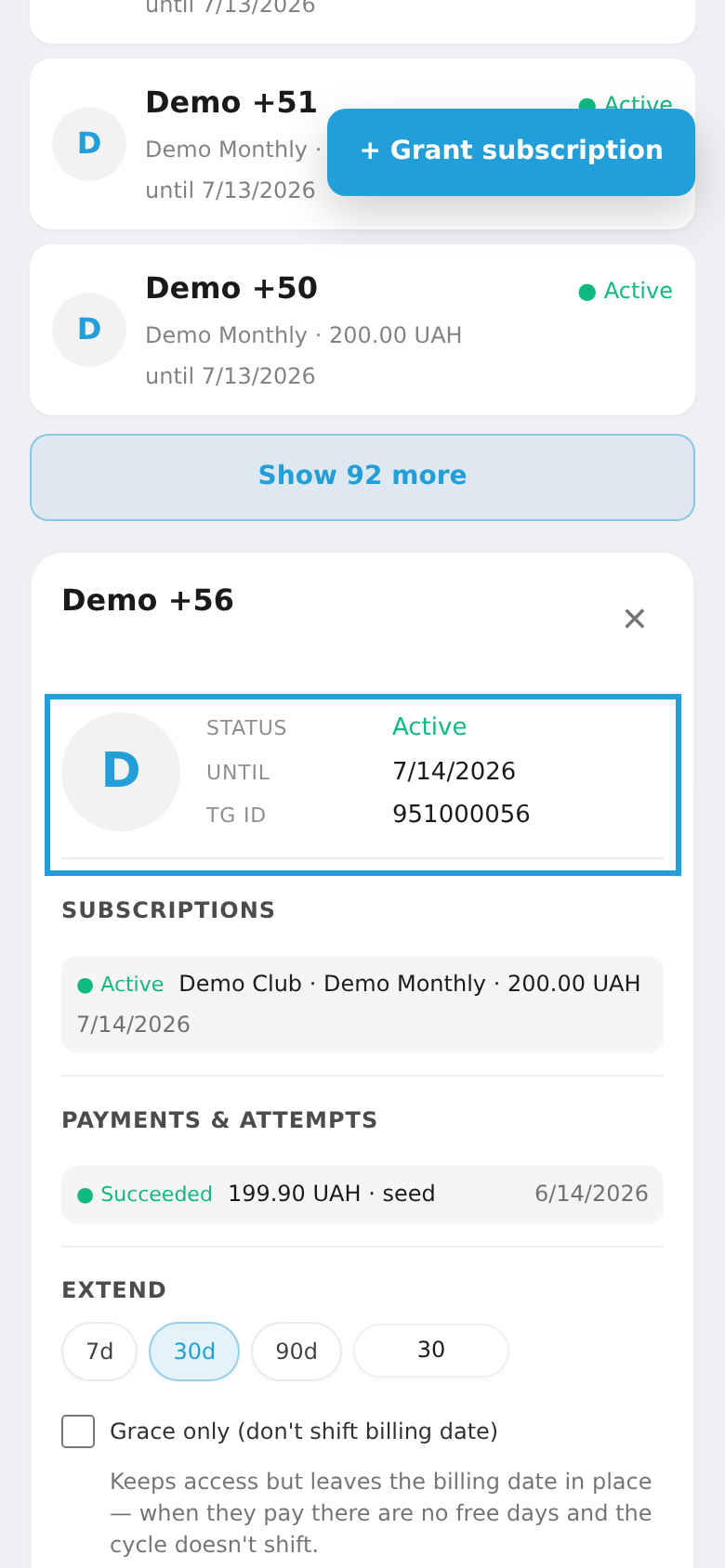
In the "Subscribers" list, tap the person you need — their card opens. The top shows the status (active, trial, cancelled…), the valid-until date and the Telegram ID, with a history of subscriptions and payments below (a pending payment gets a "Recheck" button).
Step 2. Extend and delivery
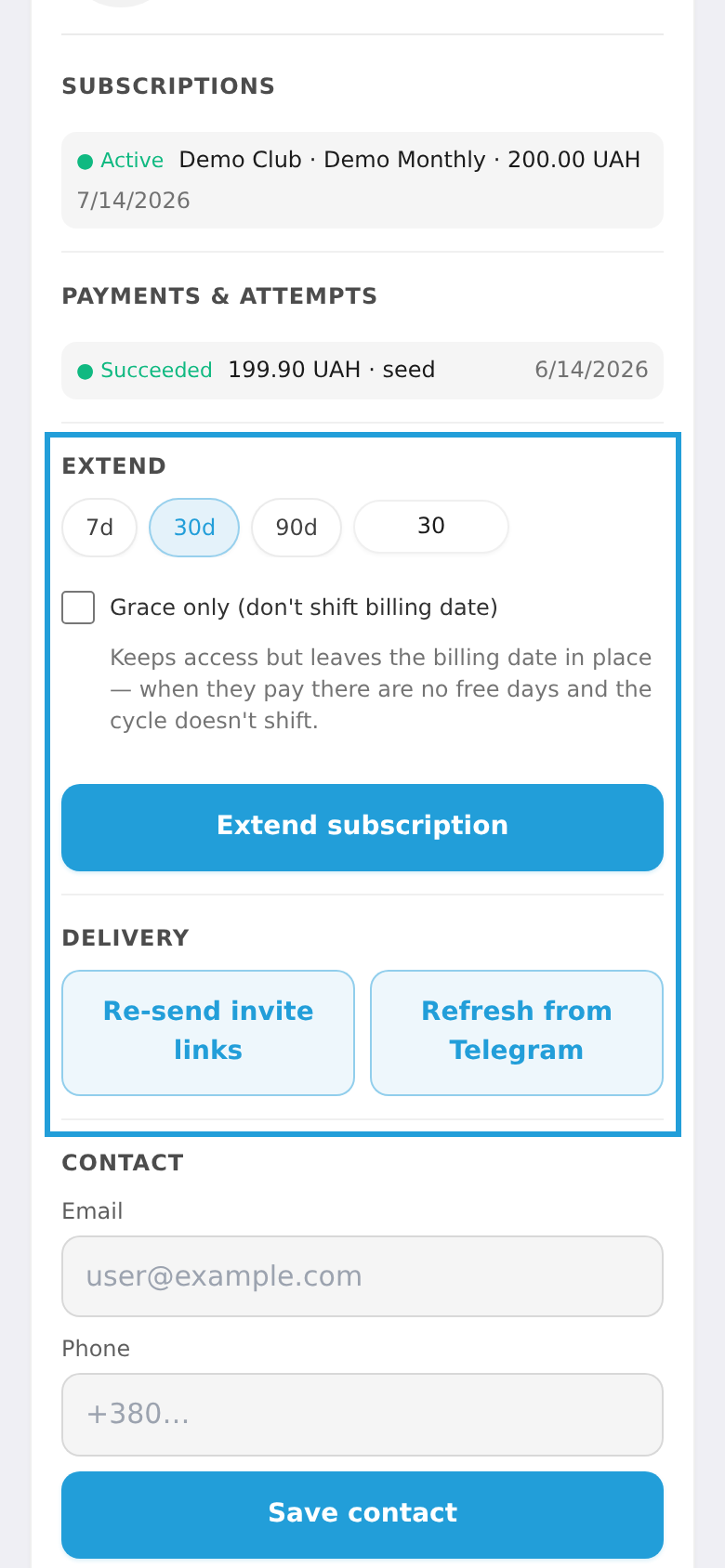
Extend — add days to the subscription: quick 7 / 30 / 90 buttons or a custom number, then tap "Extend subscription". The "Grace only" checkbox keeps access but doesn't move the billing date — handy while you wait for a payment (no free days, no cycle shift).
Delivery — "Resend the link" sends the access link to the subscriber again; "Refresh from Telegram" re-syncs their channel membership (in case they left or rejoined on their own).
Step 3. Contacts, relink and removal
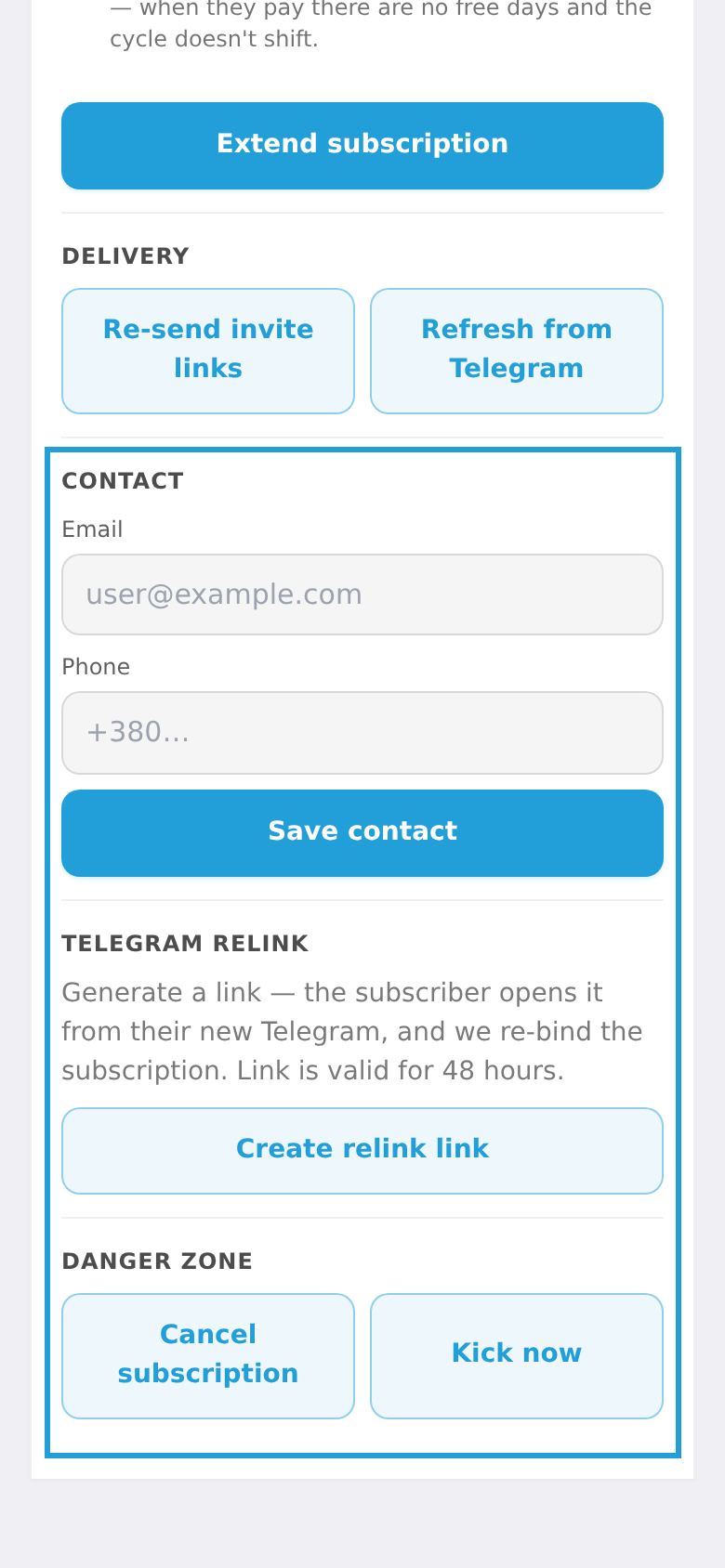
Contacts — enter or update the subscriber's email and phone, then tap "Save contacts" (payment emails go to that address).
Telegram relink — if the person lost their old account: tap "Create relink link" and pass it on. The subscriber opens it from their new Telegram, and the subscription rebinds to the new account (valid for 48 hours).
Danger zone — "Cancel subscription" stops future renewals; "Remove now" kicks the person from the channel immediately.